
Appearance
Connecting Meta Ads
Link your Meta (Facebook & Instagram) Ads account to import campaigns and manage ads across Facebook and Instagram from one place.
Before you start
Make sure you have:
- A Facebook account — either a Business profile or a personal profile
- Access to at least one Ad Account
- Access to at least one Facebook Page
- Access to at least one Instagram Account (optional)
Business Manager
A Business Manager is recommended but not required. If you use a personal profile, make sure it has direct access to the ad account you want to connect.
How to connect
Step 1 - Open Connections
In the left sidebar, click Setup → Connections.
Find Meta Ads and click Connect.
Step 2 - Log in with Facebook
A Facebook login window will open.
- Log in with the Facebook account that has access to your Business Manager or Profile
- Click Continue as [your name]
Step 3 - Grant permissions
When connecting Meta Ads, you will be asked to grant the following permissions:
| Permission | What it's for | Required? |
|---|---|---|
| Manage your ads | Create, edit, and pause campaigns | Required |
| Read ad performance | Import campaign stats and results | Required |
| Access your Pages | Link ads to your Facebook Pages | Required |
WARNING
All three permissions must be granted for the integration to work correctly. If you skip any of them, reconnect and allow all permissions when prompted.
Click Save.
Step 4 - Select your Business/Profile and Ad Accounts
After granting permissions, you'll be redirected back and asked to choose:
- Which Business Manager to connect (if you manage more than one)
- Which Ad Accounts within that Business to import
- Which Facebook Pages to import
- Which Instagram Accounts to import
Select the ones you need and click Confirm.
Step 5 - You're connected
You can import all campaigns that had data in the last 2 years to Evolve, so that report data is immediately available in Ads Manager.
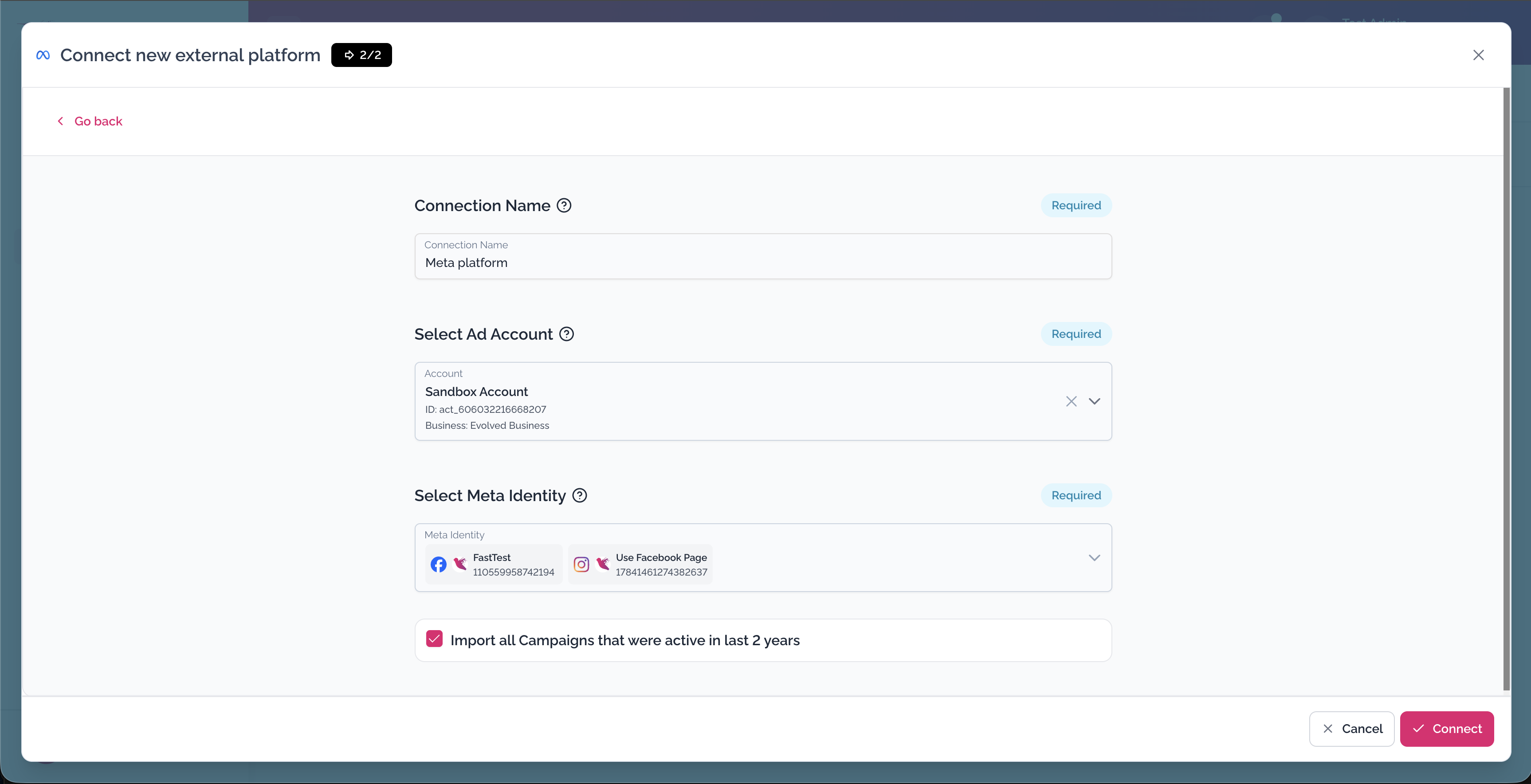
→ Auto-import historical campaign data
In Evolve, select the ad accounts and default Facebook page assigned to the account in Meta Identities from the list and click Connect.
Your Meta Ads account will appear in Setup → Connections with a green Connected badge.
What permissions are granted?
We request the minimum permissions needed to manage your ads:
- ads_management - to create and edit ads
- ads_read - to import and display your campaigns
- business_management - to access your Business Manager accounts
- pages_show_list - to link ads to your Facebook Pages
- instagram_basic - to read an Instagram account profile's info and media
We do not access your personal Facebook profile, posts, friends, or messages.
Remove Meta Ads
- Go to Setup → Connections
- Find Meta Ads and click Remove in the 3-dot menu
- Confirm
Troubleshooting
I can't see my Ad Account in the list
Make sure the ad account is added to your Business Manager. Go to business.facebook.com → Accounts → Ad Accounts to check.
I accidentally unchecked a permission
Disconnect Meta Ads and reconnect - make sure to allow all permissions this time.
My connection expired
This happens automatically after 60 days. Click Reconnect next to Meta Ads in Connections.
I manage ads for a client - whose account do I use?
Log in with your own Facebook account if you have Admin/Advertiser access to the client's Business Manager. You don't need to use the client's login.